Multi-Targeting Support (VS 2010 and .NET 4 Series)
This is the third in a series of blog posts I’m doing on the upcoming VS 2010 and .NET 4 release.
Today’s post discusses VS 2010’s enhanced multi-targeting support – which allows you to use and target multiple versions of .NET. We did significant architectural work in the VS 2010 release to enable a number of new multi-targeting features, and provide a much better experience.
Understanding Side-by-Side
VS 2010 can be installed “side by side” with previous versions of Visual Studio. What this means is that you can install it on the same machine as VS 2008/VS 2005/VS 2003 – and use all of the versions at the same time if you’d like.
.NET 4.0 can also be installed “side by side” with previous versions of .NET on the same machine. .NET 4.0 has a new version number for both the framework libraries and CLR engine – which means it runs completely independently from .NET 2.0, 3.0 and 3.5. What this means is that you can install .NET 4.0 on a machine that has .NET 2.0/3.0/3.5 installed, and configure some applications to run using .NET 4.0 and others to run using the older .NET versions (the IIS admin tool allows you to configure this for ASP.NET applications). This allows you to use .NET 4.0 for new applications - without having to necessarily test and upgrade all your existing ones.
VS 2008’s Multi-Targeting Support
VS 2008 was the first release of Visual Studio that included multi-targeting support for .NET. What this meant was that you could use VS 2008 to create and edit not only .NET 3.5 projects, but also .NET 3.0 and .NET 2.0 projects as well. This allowed developers to more quickly upgrade and take advantage of new Visual Studio tooling features – without having to necessarily require the newer version of .NET to be installed on the clients and production servers running their applications.
VS 2008’s multi-targeting support was able to take advantage of the fact that .NET 2.0, .NET 3.0, and .NET 3.5 all ran on top of the same version of the CLR – and that the primary difference between the .NET versions was in their framework libraries. As a result, Visual Studio’s compilers were able to generate the same IL output, the debugger was able to debug against the same CLR engine, and the IDE support for multi-targeting was primary focused on filtering out new assemblies and project templates from showing up when they weren’t supported with a given .NET version.
This multi-targeting experience worked – although it wasn’t perfect. Intellisense within VS 2008 always shows the types and members for the .NET 3.5 version of a framework library (even if you are targeting .NET 2.0). This means that you can sometimes inadvertently end up using a method that is only in ASP.NET 3.5 even when you are working on a ASP.NET 2.0 project.
VS 2010’s Multi-Targeting Support
We made some pretty major architectural changes with VS 2010 to enable much better and more accurate multi-targeting support.
VS 2010 now ships what we call “reference assemblies” for each version of .NET. A “reference assembly” contains only the metadata of a particular framework assembly – and not its actual implementation (making it much smaller in size on disk). This metadata is enough, though, to ensure that VS 2010 can always provide 100% accurate intellisense when targeting a particular version of the .NET framework. It also means that properties exposed through the property grid within designers, API listings within the Object Browser, and all the other various places within the IDE accurately reflect the exact API version signature.
We also updated the VS 2010 debugger, profiler and compilers to be able to target multiple versions of the CLR.
Using VS 2010’s Multi-Targeting Support
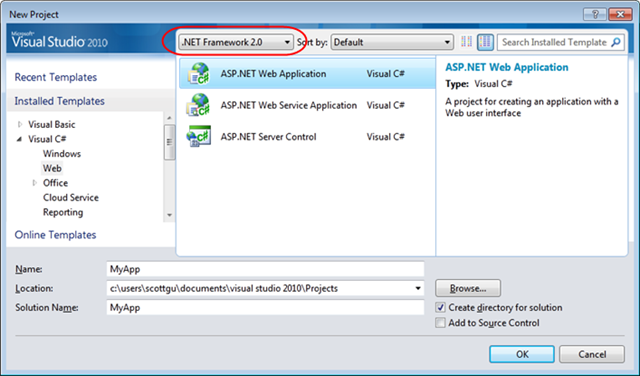
To get a better understanding of how these new multi-targeting features work, let’s create a new ASP.NET Web Application using VS 2010. To-do this we can use the “File->New Project” menu command to bring up the “New Project” dialog. We’ll use the version drop-down at the top of the dialog to filter the project templates to only show those supported with .NET 2.0. We’ll then create a new ASP.NET 2.0 web application project:
Because we are targeting .NET 2.0 with this project, VS 2010 will automatically filter the toolbox and markup intellisense to only allow us to use those controls that shipped in ASP.NET 2.0. Unlike VS 2008, the VS 2010 property grid now automatically filters to only show those properties that were supported on the ASP.NET 2.0 button control:

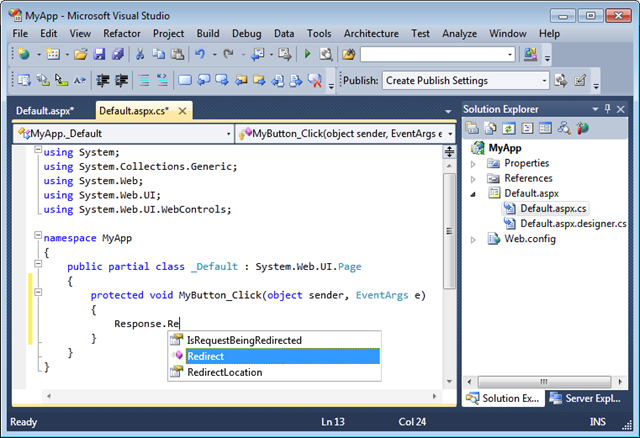
When writing code, VS 2010 will also now only show code intellisense for those types and methods/properties/events supported with .NET 2.0. Below you can see intellisense for the ASP.NET 2.0 “Response” object when we type “Response.Re”:
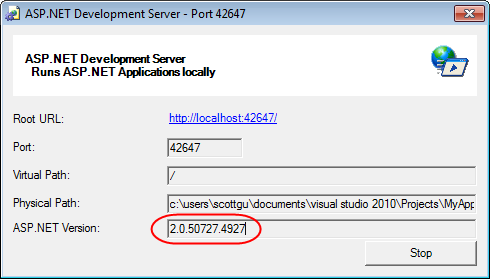
When we run the application using the built-in VS web-server, it will run using the ASP.NET 2.0 version (and the VS 2010 debugger will debug the CLR 2.0 process):
Moving a Project from .NET 2.0 to .NET 4.0
We can optionally retarget our project to work with a later version of .NET by right-clicking on the project within the solution explorer and by bringing up its properties dialog. We can select the “target framework” dropdown within it and select the version of the .NET Framework we want to target:
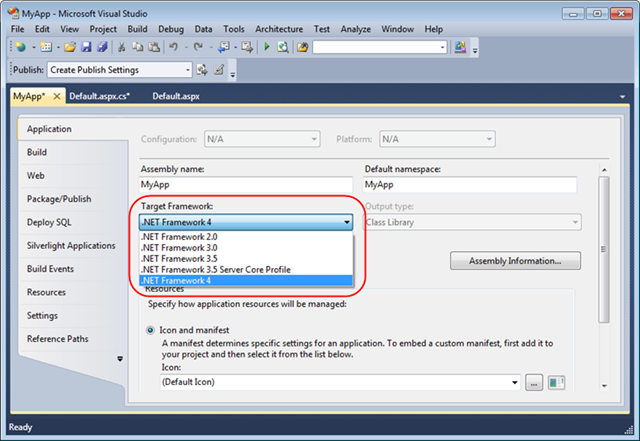
We can choose from a variety of different .NET versions above. Included in the list is the "Server Core” profile that supports the GUI-less version of Windows Server 2008 R2 – and which does not support certain APIs. Because the reference assemblies we use for metadata and intellisense can support any version or release, we’ll even be able to distribute versions of them with future service packs if they introduce any new APIs (enabling 100% accuracy).
For this walkthrough, we’ll choose to move the project to use .NET 4.0. When we do this, VS 2010 will automatically update the project reference assemblies and the web.config file of our project to properly reflect the new version.
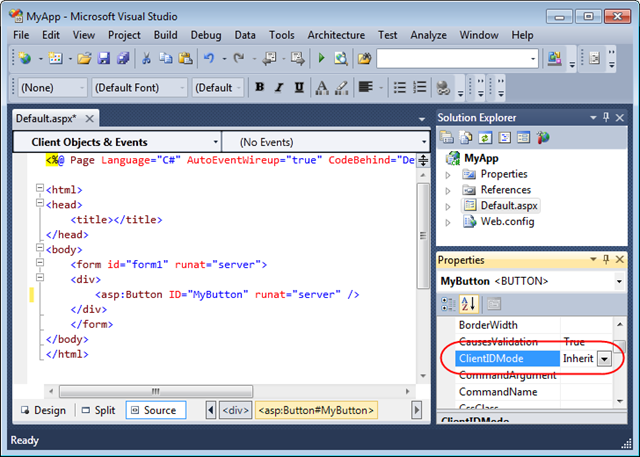
Once we do this, VS 2010 will filter the toolbox and markup intellisense to show us all of the new controls and properties available in the ASP.NET 4.0 version. For example, the property grid below now displays the new “ClientIDMode” property available on all controls in ASP.NET 4.0 - which gives you the ability to control how client id’s are output and avoid ugly client ids (a new ASP.NET 4.0 feature I’ll cover in a later blog post):
Now that we’ve upgraded the project to use .NET 4.0, VS 2010 will also now show us code intellisense for the new types and methods/properties/events on types in .NET 4.0. For example, below you can see some of the new redirect methods available on the ASP.NET 4.0 “Response” object (which previously did not show up when the project was targeting .NET 2.0):
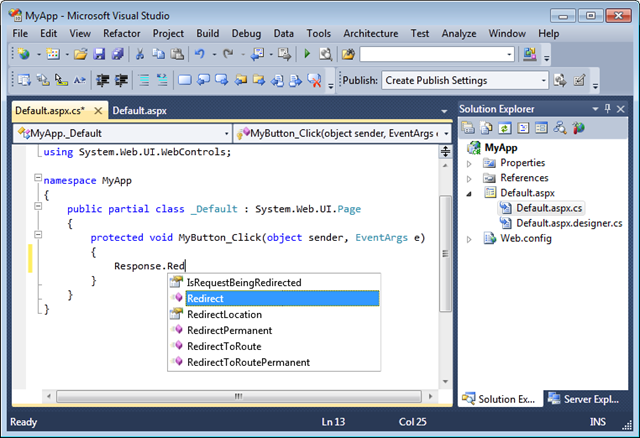
The new Response.RedirectPermanent() method above makes it easy to issue “HTTP 301 Moved” responses – which can avoid your site accumulating stale links in search engines. The URL Routing engine is now supported by both ASP.NET Web Forms and ASP.NET MVC based applications, and the newResponse.RedirectToRoute() method allows you to easily redirect to a route declared with it.
And lastly when we run the application using the built-in VS web-server, VS 2010 will now run it using the ASP.NET 4.0 version:

Summary
VS 2010’s multi-targeting support enables you to work on projects that target .NET 4.0, .NET 3.5, .NET 3.0 and .NET 2.0. It will allow you to start taking advantage of the new tooling features, without having to immediately upgrade the clients and servers running your application’s to .NET 4.0. The improved multi-targeting support will ensure that this experience is even better and more accurate than before.


